Muse Piano Lab · Piano Sight Reading
Learn note reading by playing
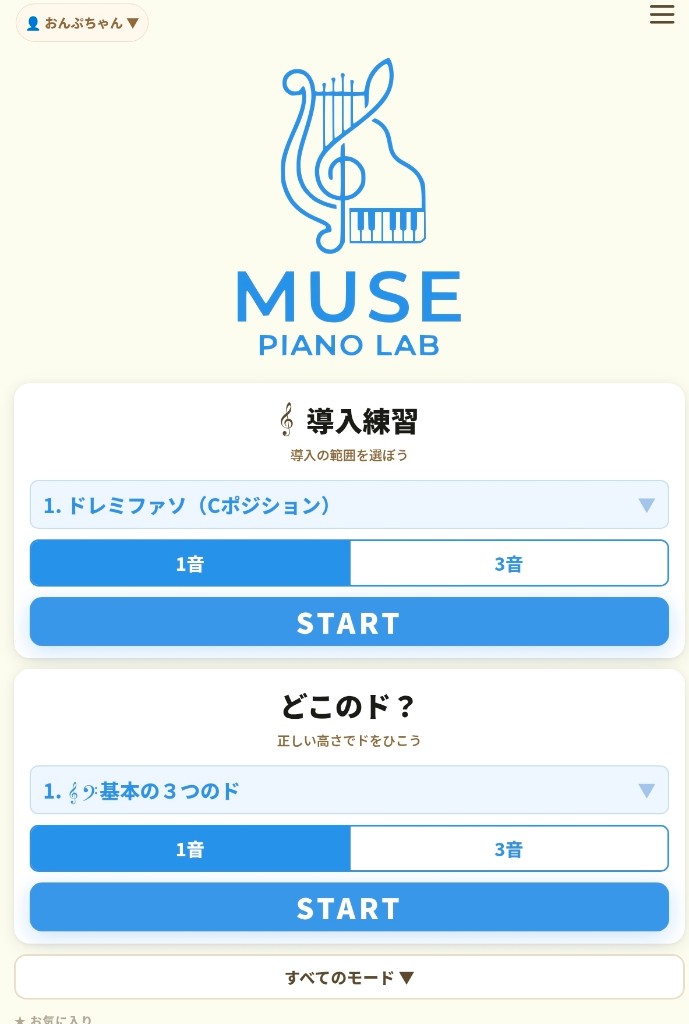
Piano Sight Reading: Mic
Look at the note on your phone or tablet and answer. The app tells you if you’re right—so you can practice alone, as many times as you need.
Just one minute—and it counts. No piano? Use Do-Re-Mi / ABC buttons or the on-screen keyboard. Once you can read notes, any song is within reach.
Features
Play for real.
The app checks for you.
Look at the note on your phone or tablet and answer. The app tells you if you’re right—so you can practice alone, as many times as you need.
01
Piano + mic check
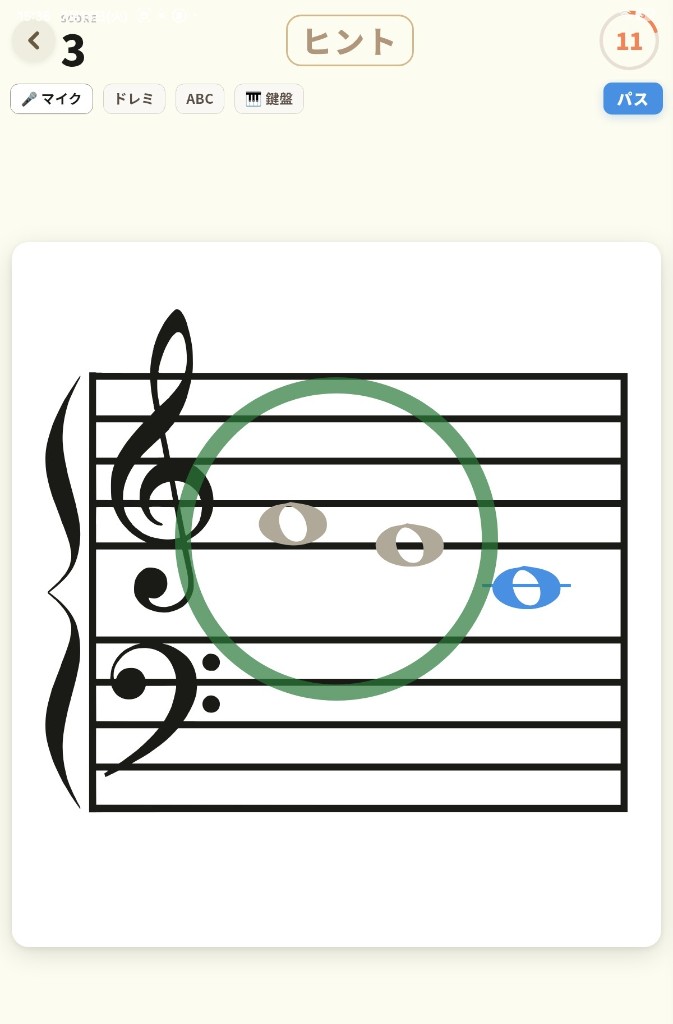
See the staff note, play the piano, and the app checks pitch and note name—including low vs high C.
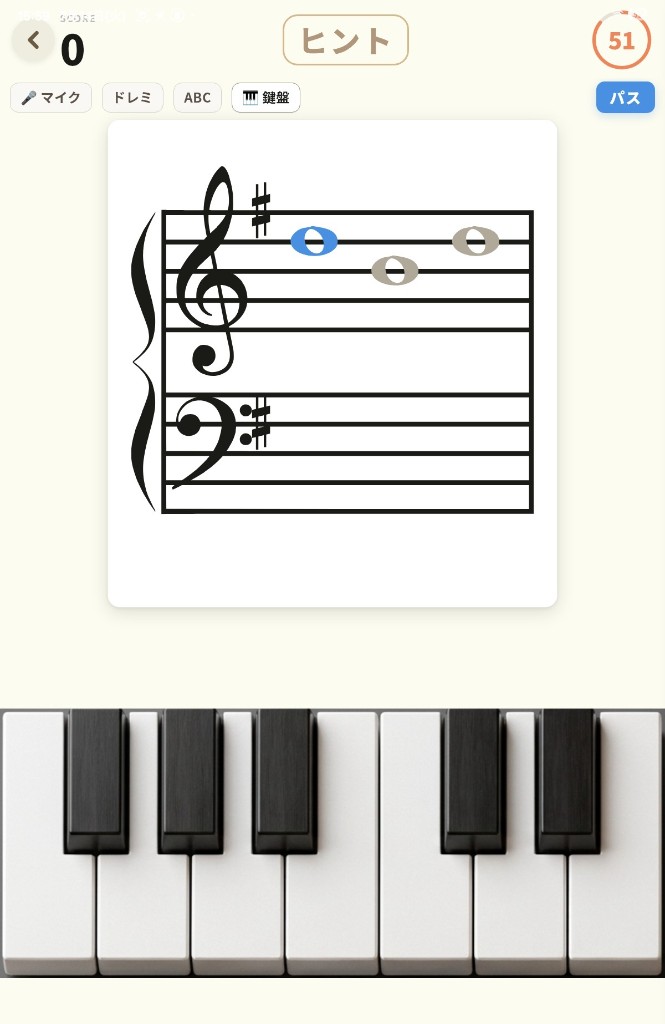
No piano? Tap Do-Re-Mi / ABC buttons or the on-screen keyboard (available in some modes).
02
All one-minute drills
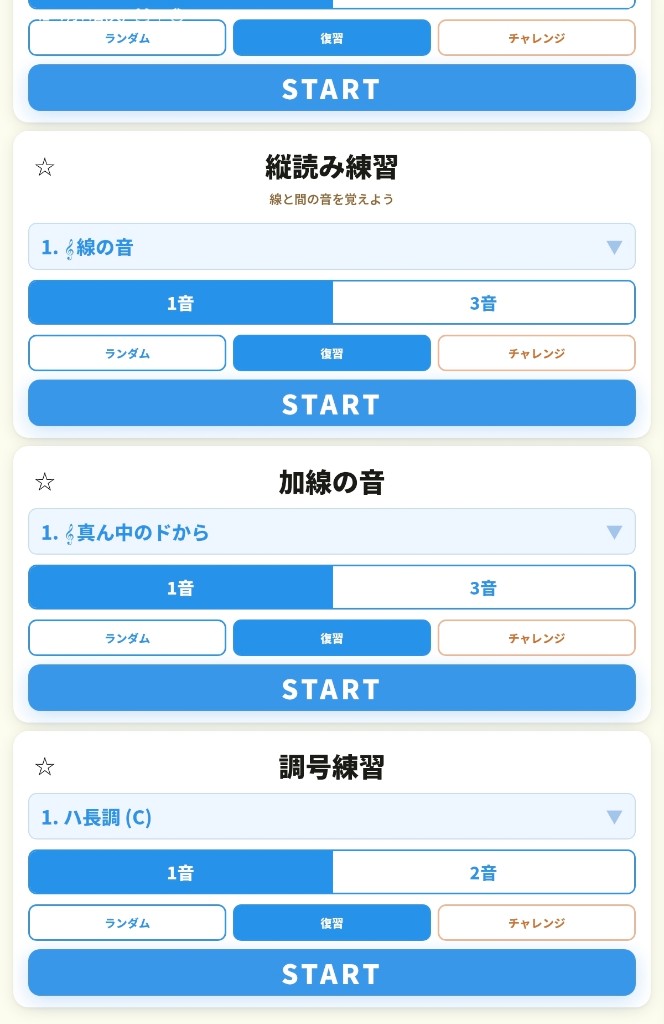
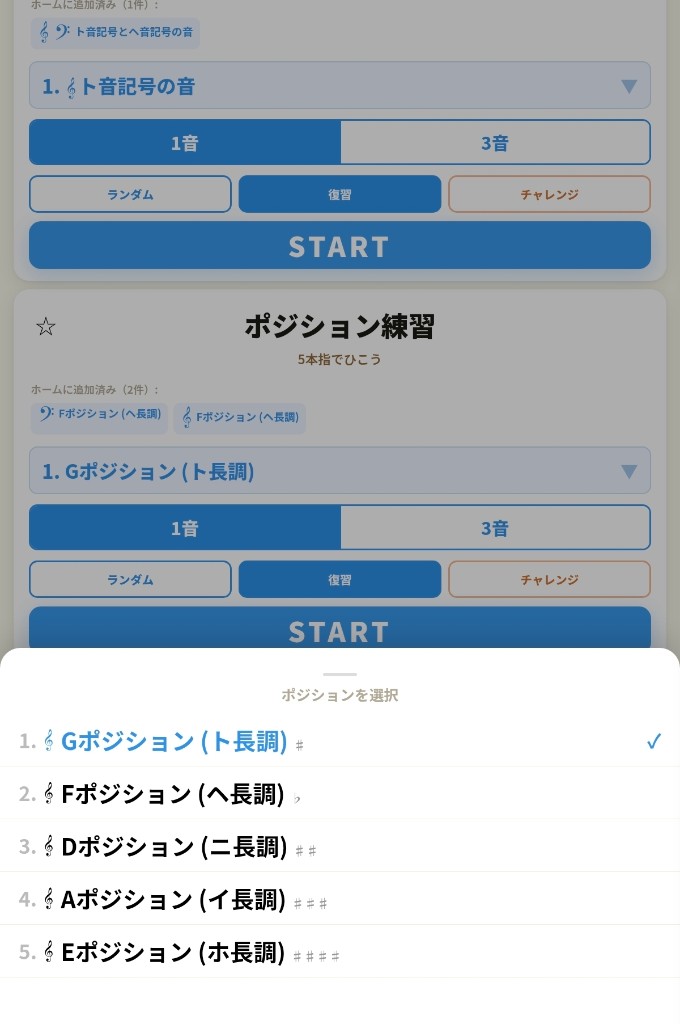
Intro, basics, positions, ledger lines, key signatures, lines and spaces—each as a focused one-minute drill. Position practice also matches common beginner method books, so you can follow your lesson material.
03
Review & Challenge
Review mode brings back the notes that won’t stick until they do. Challenge mode ends after 5 misses. Mistakes show “?” instead of a harsh X.
Inside the app
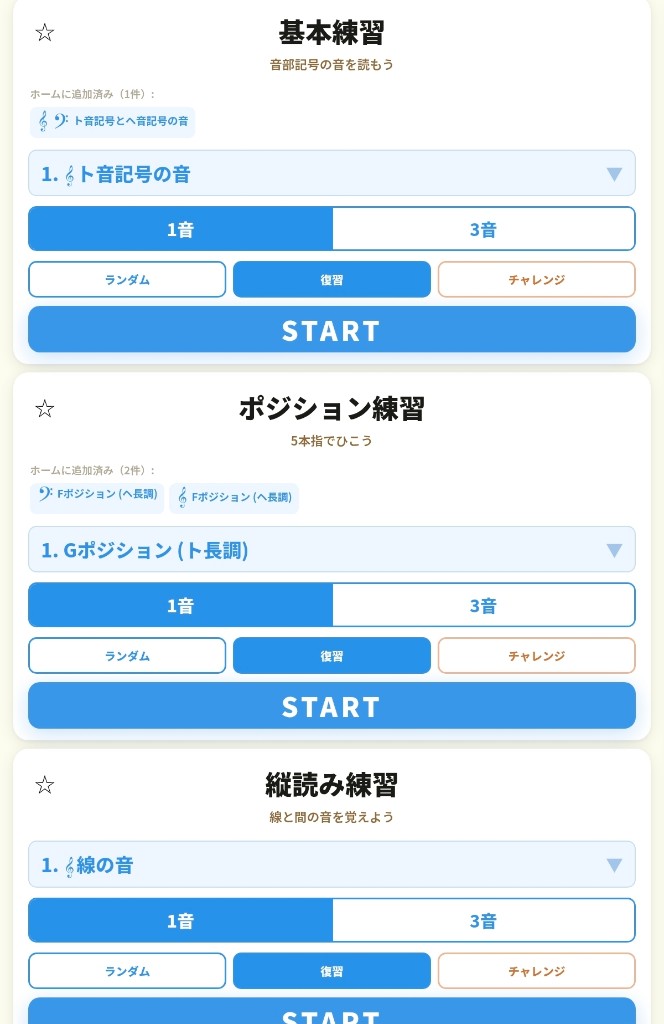
A peek inside the app.
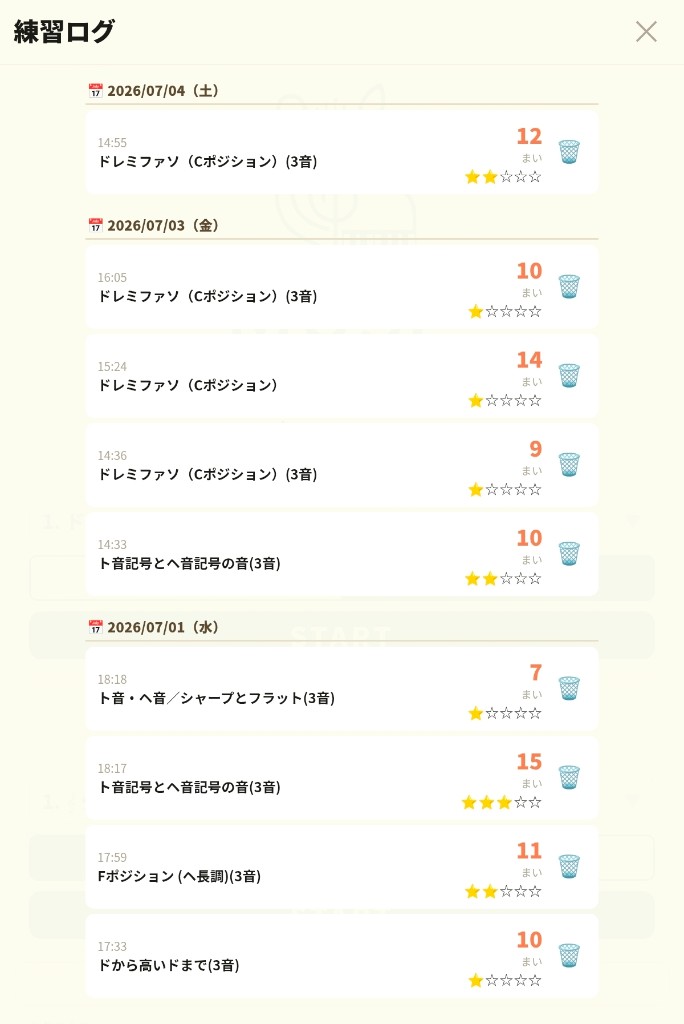
Menus are finely split; Review and Challenge are one tap away. Logs make progress feel real.
For whom
Who it’s for
For preschool through middle-school piano learners, and adult beginners—anyone who wants note reading to stick at home.
For teachers
For piano teachers who use note cards
Think of this app as a digital companion to paper note cards. The same see–play–check flow you use in lessons becomes homework.
Assign the same range you covered in the lesson (for example, a position) as home practice. Students do a few one-minute rounds after they leave—so sight-reading feels smoother at the next lesson.
The mic marks right and wrong, so parents don’t need to sit beside the piano. Once the phone is set up, students can practice on their own.
Logs show which modes they practiced and how many cards they completed. Families can send a screenshot before lesson day—so you can see what they actually did that week.
From the log, you can spot shaky positions or staff basics that still need work. Assign just one mode for the week: only this section for now.
Position drills line up with common beginner method books. Intro Practice is free—easy to recommend to parents.
How it works
How to use it—in 3 steps.
By the piano, place your phone on the music stand. On the go, use buttons or the on-screen keys—same flow.
Step 01
See the note
A staff and a note appear. Read which pitch—and which octave.
Step 02
Play / answer
Play the piano for mic check. No piano? Answer with ABC buttons or the on-screen keyboard.
Step 03
See the result
Instant feedback. One-minute reps build the habit of reading accurately.
About
So the sight-reading wall we see in lessons
can be cleared at home, too.
A home sight-reading drill born from real piano teaching.
You can use it alongside paper note cards—or on its own. One phone is enough to start practicing the way a short lesson feels.
Instant feedback, then Review mode for the notes that keep slipping. Progress stays on record, so it’s easier to keep going.
- Intro Practice is free to use.
- Basics, positions, and other menus are one-time in-app purchases (pay once—not a subscription).
- Works offline.
- No ads—built with kids in mind.
- Privacy Policy
Start with one note.
Today’s one minute becomes tomorrow’s reading fluency.
FAQ
FAQ
Can complete beginners use it?
Yes. Start with the intro menus and widen the range step by step. Paper note cards work well alongside the app when you want them.
Do I need a piano?
Piano + mic is the main way to practice, but without one you can tap Do-Re-Mi / ABC buttons or the on-screen keyboard (available in some modes).
Do digital pianos or keyboards work with the mic?
Yes—any digital piano or keyboard that makes sound. Phone piano apps work too, and sung or choir pitches can also trigger the mic. Quieter rooms are easier.
On Android, I keep getting “?” even when I’m not playing
Mic sensitivity varies by device; some Android phones show “?” repeatedly from room noise alone (this issue and button are not on iPhone). On Android, tap Hide ? next to your user name on Home to hide “?” only during mic auto-detection practice. Correct (○) feedback still works. In Do-Re-Mi, ABC, or keyboard mode, “?” and Review/Challenge work normally. While “?” is hidden for mic practice, Review and Challenge cannot be used.
What practice menus are there?
Intro, basics, positions, ledger lines, key signatures, lines and spaces, and more—all as one-minute drills. Position drills match beginner books. Review hard notes; Challenge mode ends after 5 misses.
How is this different from Do-Re-Mi Sushi?
Do-Re-Mi Sushi is the doorway into keys and note names—exact key positions (shape recognition) and rising/falling pitch, as a game. If the note-card drill feels hard, try Do-Re-Mi Sushi first.
Overview
This app at a glance
Who it’s for, what it does, and pricing—in a short summary.
| App name (Japan) | ピアノ音符カード 弾いて自動判定!先生のピアノ練習法 |
|---|---|
| App name (English) | Piano Sight Reading: Mic (Android: Piano Sight Reading: Practice) |
| For | Piano learners from preschool through middle school, adult beginners, and parents or teachers looking for note cards |
| What it does | Look at a staff note and play the piano (digital piano or keyboard also works); the mic checks pitch and octave. No piano? Answer with note-name buttons or the on-screen keyboard diagram |
| What sets it apart | Learn pitch height that paper note cards (flashcards) can’t score for you |
| Pricing | Intro Practice stays free. Basics, positions, ledger lines, key signatures, and more are one-time in-app purchases (not a subscription). Works offline with no connection required. The mic is for scoring only (no recording or upload) |
Stores: App Store Google Play · Japanese page